Zoned out? Catch up in one click.
Catch me up sums up the last 5 minutes in a sentence and a few points, so you are back in the conversation without asking anyone to repeat.

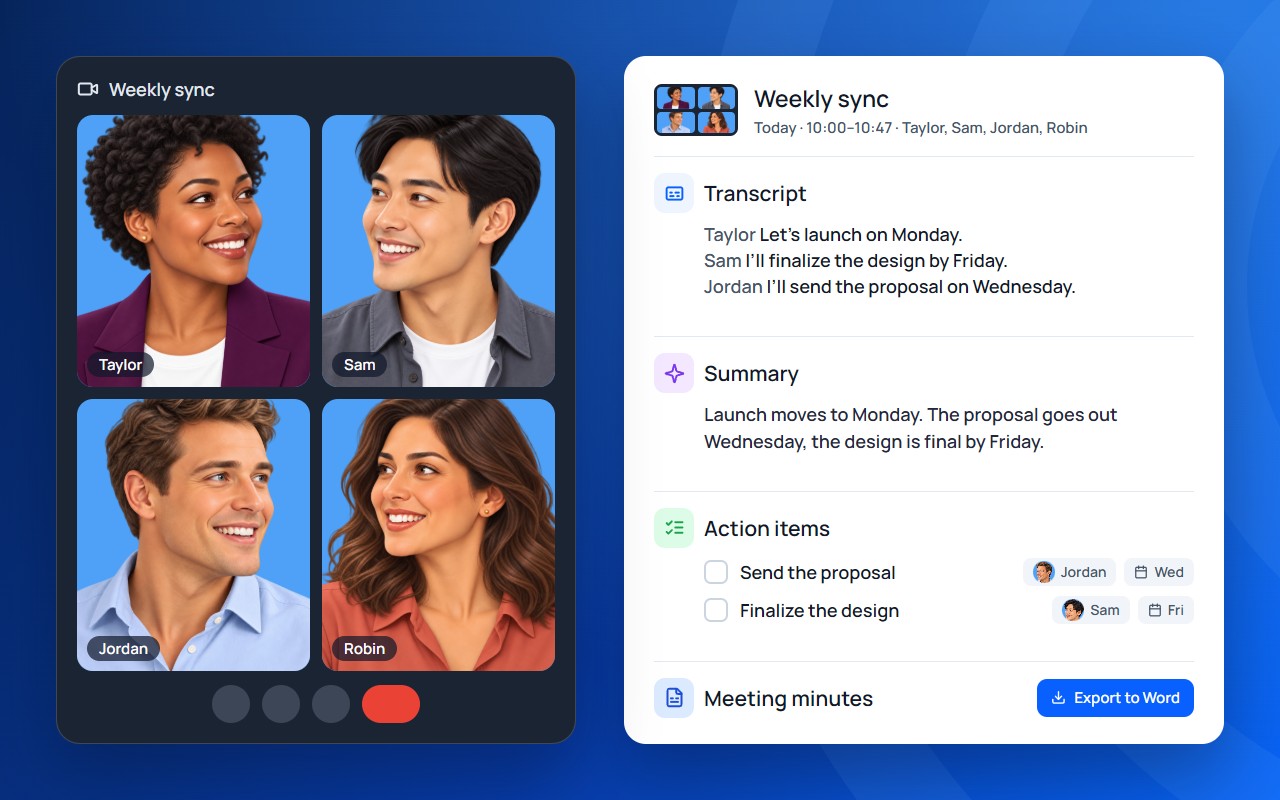
AI keeps the transcript while you’re in the call. Hang up, and the summary, minutes and action items are one click away.
Pin the icon to your toolbar, so it is one click away.
Notes start by themselves, in a panel on the right of the call.
Press Get Summary, and the minutes and to-dos are waiting in Workspace.
In the call
The panel sits on the right of the call. Only you see it.
Catch me up sums up the last 5 minutes in a sentence and a few points, so you are back in the conversation without asking anyone to repeat.
After the call
Every meeting lands in Workspace, a tab of its own with your minutes and to-dos. Click the extension icon on any page but the call to open it.
Press Get Summary when the call ends, and in a few seconds you see what was decided, who does what and by when, and what is still open.
Every point carries its quote from the transcript, so you can check it before you pass it on.
The Tracker gathers action items and open questions from all your meetings. Filter by meeting, person or date, and tick each task off when it is done.
Each item links to the meeting it came from, and a weekly call on the same link is grouped into a series.
Export gives you a Word document to edit and send, text to paste into an email, or a Markdown file: date, participants, topics, decisions, a task table and the whole transcript.
It is free, with no account and no email to give. The daily limits apply: 5 summaries and 30 Catch me up a day.
It does not save audio or video recordings. Notes come from Meet’s captions. While taking notes, it saves a still image of the visible meeting and the participants’ names, with profile pictures when available, for the meeting’s card in Workspace. These stay in your browser and are not sent to AI services. Nothing joins your call.
Only if the chat is told. In Manual, “Take meeting notes” posts a notice in the Meet chat. In Automatic nothing is posted until you press “Notify chat”. The panel and your notes are visible only to you.
Yes. Any Google account that can join a Meet call will do, personal Gmail included. No Google Workspace plan or subscription is needed.
No, only in Google Meet, in Chrome.
Any language Meet’s captions support: 89 languages and regional variants, from English and Spanish to Japanese and Hindi. It picks the language for you, and “Change” at the top of the panel switches it. Meet hears one language at a time, and there is no translation.
5 summaries and 30 Catch me up a day, per browser, at no charge; they start over every day. The transcript itself has no limit, and a request that fails does not count. The summaries left are the number next to the sparkle, in the panel’s bottom strip and at the bottom of Workspace’s sidebar.
Check it before you pass it on. Every point shows its quote from the transcript, an owner is set only when it was said in the call, and points found only on a second read are marked “Possibly”.